Remote work has transformed the professional routine of millions of people, bringing greater flexibility but also a series of unexpected challenges. Among them, physical discomfort — especially in the neck area — has become one of the most common and often overlooked issues.
Turning domestic spaces into functional workstations requires careful attention to ergonomics, particularly in environments that were never originally designed for long hours of computer use.
Even small workspace adjustments can noticeably improve comfort, focus, and overall productivity throughout the day. One of the most important — and frequently underestimated — aspects of this setup is monitor positioning.
Understanding how screen height affects posture is a key step toward creating a more balanced, efficient, and comfortable home office experience.
The Relationship Between Posture and Discomfort During Work
Many people assume that neck discomfort comes only from spending too many hours working. In reality, the way the head remains positioned in front of the screen throughout the day often has an even greater impact.
When a monitor sits too low or is poorly aligned, the body naturally compensates by pushing the head forward for extended periods.
This habit is especially common in improvised home office setups and tends to increase the feeling of tension around the neck and shoulders. The farther the head moves away from its natural position, the more effort the body needs to maintain posture during everyday tasks.
Over time, this can lead to fatigue, stiffness, and a persistent feeling of discomfort after work.
Using laptops directly on low desks often intensifies this posture pattern because the screen stays below the natural eye line. As a result, even simple adjustments to screen positioning can noticeably improve daily comfort while working.
Understanding how posture, monitor height, and visual comfort work together is the first step toward creating a workspace that feels more balanced throughout the day.
The Golden Rule: Finding the Ideal Monitor Height and Distance
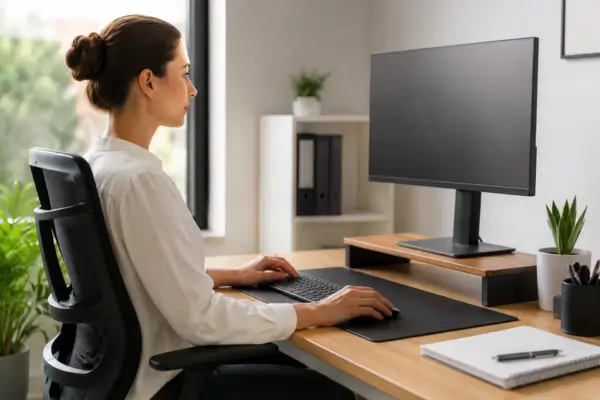
Adjusting a monitor correctly is one of the most effective ergonomic improvements for increasing comfort during work. The golden rule for screen positioning is simple: the top of the monitor should sit at eye level or slightly below it, usually at an angle between 15 and 30 degrees below the horizontal line of sight.
This setup helps maintain a more natural posture during prolonged computer use and reduces the tendency to tilt the head downward repeatedly.
A simple way to check whether the monitor is properly positioned is to sit upright, look straight ahead, and notice whether the upper third of the screen naturally aligns with your field of vision. If you constantly need to raise or lower your head to view the content comfortably, adjustments are probably necessary.
Viewing distance matters just as much. Ideally, the monitor should remain approximately 50 to 70 centimeters away from the eyes. This distance generally allows for comfortable reading without encouraging the body to lean unconsciously toward the screen throughout the day.
Maintaining proper distance also supports a more stable sitting posture over long work sessions.
A slight backward tilt can further improve visibility and help minimize unwanted glare, creating a smoother and more comfortable visual experience. In practice, it is the combination of height, distance, and screen angle that makes a workstation more comfortable for long hours of focused work.
Beyond Height: Additional Ergonomic Factors That Influence Comfort
While screen height and viewing distance are essential, several other details within the workspace also affect overall comfort during the workday. In many cases, these smaller adjustments are what truly make a setup feel practical and comfortable over time.
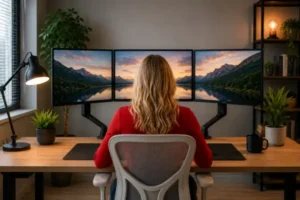
Screen alignment deserves particular attention, especially in dual-monitor setups. When monitors are poorly positioned, people tend to rotate their heads repeatedly throughout the day. Ideally, the primary monitor should stay directly in front of the body, while the secondary screen should remain close enough to access comfortably without excessive neck movement.
Brightness and contrast settings also play a major role in visual comfort. Screens that are too bright or too dim can make reading tiring and may encourage unconscious posture adjustments during long periods of use. Matching screen brightness more closely to the room’s lighting conditions usually creates a more natural viewing experience.
Font size and interface scaling are equally important. When text appears too small, many people instinctively lean closer to the screen, disrupting the ideal viewing distance and reducing overall comfort during work.
Lighting conditions throughout the room also influence the way the body interacts with the workspace. Reflections caused by windows or strong overhead lighting can make the screen harder to see, leading users to adopt awkward positions to avoid glare.
Even small changes in desk placement or monitor angle can significantly improve visual balance within the environment.
Creative and Affordable Ways to Adjust Your Monitor
Creating a more comfortable workstation does not necessarily require expensive equipment or large spaces. There are practical and affordable solutions that adapt well to different environments and budgets.
Monitor arms are among the most versatile options available. In addition to freeing up desk space, they allow precise adjustments in height, depth, and tilt, making it easier to adapt the setup throughout the day. This flexibility is especially valuable in compact home offices where every centimeter matters.
Desk risers are another effective alternative. Many models elevate the screen while also adding storage space through drawers, shelves, or open compartments for accessories and peripherals. In smaller setups, these solutions improve both organization and overall functionality.
For those looking for lower-cost alternatives, improvised solutions can also work surprisingly well. Sturdy books, stable boxes, or small shelves are often enough to raise the monitor to a more comfortable height, as long as the structure remains secure and balanced. The internet is full of creative adaptations designed specifically for compact home office environments.
Laptop users usually face an additional challenge because the screen and keyboard are connected. This often results in long periods spent looking downward while working. Using a laptop stand together with an external keyboard and mouse can create a much more comfortable setup for extended daily use.
Integrating Monitor Positioning Into an Ergonomic Routine
Comfort during work depends on how every element of the workspace functions together. Monitor positioning becomes far more effective when the chair, desk, keyboard, and mouse are also arranged in a balanced and practical way.
A supportive chair with appropriate height adjustment helps maintain a more natural sitting posture throughout the day. Likewise, keeping the keyboard and mouse close to the body reduces excessive arm and shoulder movement during repetitive tasks.
Beyond the physical arrangement of the workspace, short breaks throughout the day also make a meaningful difference. Remaining in the same position for long periods often increases feelings of stiffness and fatigue. Small moments of movement help make the work routine feel lighter and more comfortable, especially during extended hours in front of a screen.
Paying attention to subtle signs of discomfort throughout the day makes it easier to adjust the environment before the routine becomes physically exhausting. In many cases, simple changes involving chair positioning, monitor alignment, or lighting conditions are enough to noticeably improve the overall work experience.
Over time, integrating these adjustments into daily habits helps transform the home office into a more functional and adaptable space built around real everyday needs.
In the end, creating a more comfortable workspace often comes down to small adjustments that are frequently overlooked during busy routines. Proper monitor height, balanced viewing distance, and thoughtful workstation organization can dramatically improve the experience of spending long hours in front of a screen.
As this guide has shown, even minor environmental changes can reduce discomfort caused by repetitive posture habits while contributing to a more organized and comfortable work routine. Ergonomics is not necessarily about investing in expensive equipment, but about understanding how the workspace can better adapt to the person using it every day.
With gradual improvements and closer attention to detail, even compact home office setups can become more functional, productive, and genuinely comfortable places to work remotely.