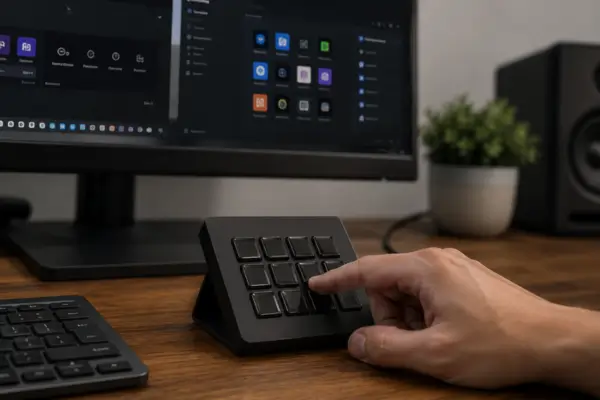
If you’ve made it here after reading about programmable keypads, you’ve probably landed on one very specific question: okay, I get the idea — but how do I make this macropad work?
That’s exactly the part most content on this topic skips. Plenty of articles cover what the device can do, but almost none explain how to take the first steps without getting lost. That’s what this one is for.
You’ll walk away knowing how to pick the right app for your situation, how to think through your profile structure before you configure anything, and how to build your first layers in a way that actually fits your work — without overcomplicating it.
First Things First: The App Is the Heart of Your Macropad Setup
The macropad itself is just hardware. What turns that block of keys into an automation tool is the app you use to program it. And that’s the first big decision.
There are two main routes. The first is the software that ships with the device — every manufacturer has its own, and most of them work through clicks and visual menus. You open the program, see a layout of the keys on screen, click on each one, and decide what it does. No typing, no code, no guesswork. The Stream Deck runs on this model, and that’s exactly why it caught on so widely: pretty much anyone can have something working in under thirty minutes.
The second route is independent software that works with any device and opens up more possibilities — but asks for a bit more patience upfront. AutoHotKey, for instance, is free and lets you build far more sophisticated automations, including linking your macropad to other programs. The learning curve, though, is real.
The practical advice here: if you’ve never set up anything like this before, start with the manufacturer’s app. You’ll get results fast, and that matters — quick wins are what keep you motivated. If a few weeks in you find yourself wanting to go deeper, that’s when it’s worth exploring the other options.
What Profiles Are — and Why You Need More Than One
A profile is, at its core, a set of configurations for one specific situation. Think of it this way: when you’re in Excel, the keys do one thing. Open your management system, and those same keys do something completely different. That’s a different profile for each context.
Most macropad software switches profiles automatically the moment you change windows on your computer. You were in Excel, the keys were set up for spreadsheet work. Open the browser, and the keys shift to whatever makes sense there. All of that happens without you pressing a thing.
That matters more than it sounds, because it solves a problem that seems small but gets under your skin fast: never having to memorize which key does what in each program. The device knows where you are and adjusts on its own.
To build your profiles, start by listing the three or four programs you use most during the day. For each one, jot down the five actions you repeat the most. Those are the actions that go on your keys. Don’t try to cover everything at once — start with the essentials and adjust as you go.
What Layers Are — and When They Actually Make Sense
If profiles solve the context problem — Excel vs. your internal system vs. the browser — layers solve the quantity problem. And this is one of the most useful things to understand before you configure anything.
Say you’ve got a twelve-key macropad. Twelve keys start to feel like very little the moment you list out everything you want to automate. That’s where layers come in: think of them as extra pages. You hold down one specific key — usually called a layer key — and the other eleven start doing something entirely different. Let go, and everything snaps back to normal.
In practice, it works like this: on your main layer, your keys handle the most frequent actions — the ones you use dozens of times a day. On the second layer sit the actions you use less often but still need. On the third, more specific or occasional tasks.
The rule experienced users follow is simple: if you have to stop and think about which layer an action lives on, it’s on the wrong layer. The most automatic actions always stay on the main layer, with no extra key needed to reach them.
Building Your First Configuration, Step by Step
Now that profiles and layers make sense, putting it all together gets a lot more straightforward. Here’s how to structure it:
Pick one single program to start with — ideally the one where you spend most of your day. Open the macropad’s app and create a profile for it. Within that profile, set up just five keys. Five, not more. Each one tied to an action you repeat often.
Leave the rest of the keys empty for now. It’s tempting to fill everything in right away, but unused keys don’t get in your way — and you’ll naturally figure out what’s missing as you work.
After two or three days running on just those five keys, you’ll notice two things: which actions you wish you had and don’t, and which keys you set up but barely ended up using. That’s when you adjust. This back-and-forth is normal and expected — nobody nails the ideal setup on the first try.
Only once that first profile is running smoothly on autopilot is it worth building a second one, for the next program. The same process repeats from there, one profile at a time.
A Common Mistake That Slows Everything Down
There’s a pattern that shows up again and again among people who start setting up a macropad and give up within the first few weeks: trying to build the perfect setup before ever using it.
They spend hours weighing every possibility, build out an elaborate structure with multiple layers and dozens of keys — and then, when it’s time to use it for real, can’t remember any of it. The device turns into decoration.
The ideal configuration doesn’t exist before you start using the device. It shows up through using it. The best keys you’ll ever set up are the ones you’ll discover you needed after a few weeks of working with the device. That’s why less is more at the start: five keys that work well are worth far more than forty keys you end up ignoring.
The Setup Starts Simple and Grows With You
The core idea behind this article — and the one before it — is that a programmable macropad isn’t a gadget you configure once and forget about. It’s a tool that evolves alongside your work.
You start with five keys, realize you need more, build a second layer, notice that a new profile would make sense for that system you’ve started relying on more. Over time, the device starts looking less like a generic setup you could’ve copied off the internet, and more like the way you actually work.
That’s the destination here: a setup that’s genuinely yours, built out of your real routines, that works because it was shaped by real use — not by whatever looked good on paper.