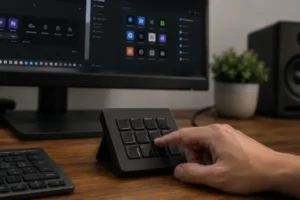
If you work with numbers all day — spreadsheets, reports, financial systems, anything that involves typing the same kind of data over and over — you’ve probably felt that subtle fatigue that’s hard to put into words. It’s not pain. It’s not an injury. It’s constant friction: the hand that has to reach somewhere else, the sequence of keys you’ve repeated for the tenth time in an hour, the typo that shows up right when you’d finally found your rhythm.
Financial analysts, accountants, and anyone handling large volumes of data were among the first to realize that a standard keyboard was never really built for this kind of work. That realization is exactly why a specific device has started showing up more and more on home office desks across this group: the macropad.
This article isn’t about physical comfort or desk organization. It’s about a specific tool that’s changing how these professionals work with data — and why that matters more than it might seem at first glance.
What This Device Does That a Regular Keyboard Can’t
A macropad looks, on the surface, like an ordinary numpad — that block of number keys sitting to the right of a full-size keyboard. The difference is in what happens underneath.
On a standard keyboard, every key does exactly one thing. On a macropad, a single key can trigger an entire sequence of actions — all at once, with one press. Picture this: every time you close out a cash flow spreadsheet, you need to apply a formula, format the cell, move the cursor to the next row, and save the file. Normally, that’s six, eight, ten keystrokes in sequence. With a macropad, all of that becomes a single button.
This is different from just memorizing a keyboard shortcut. The logic here works the other way around: instead of remembering combinations, you build actions and put them, quite literally, at your fingertips. The repetitive task stops being a sequence — it becomes a gesture.
That’s why the right comparison isn’t keyboard shortcuts. It’s automation. Except this is automation you trigger physically, the moment you decide to, with nothing running in the background that you have to depend on.
Step One: Figuring Out What You Actually Repeat
Before programming a single key, the analysts who’ve made this device work for them did something most people skip talking about: they stopped to actually watch how they work.
The question is simple — which sequences of actions do you repeat more than twenty times a day? That’s the real test for deciding what’s worth automating. Not what feels tedious, not what you assume takes up time. What you literally do again and again, the same way, every single time.
For a controller analyst, that might be the process of closing out an entry in the system: open the field, enter the value, confirm, move to the next record. For someone working with dashboards, it might be the click sequence used to jump between tabs while presenting data. For an accountant, it might be the path to one specific formula they use in every monthly report.
What’s particularly useful about macropads with switchable profiles is that the same twelve- or twenty-key device can cover Excel, the company’s internal system, and even communication tools — each with its own set of actions, no reconfiguring required. Switch the profile, and the same keys suddenly do something completely different.
Which Devices People Are Actually Using — and Why Each Choice Matters
The market for this kind of product splits into two distinct camps, and the gap between them goes well beyond price.
On one side are macropads built for deep customization — the Keychron Q0 Max and similar boards. These let you tweak everything down to the smallest detail: how each key responds, how many action layers you want to build, whether you want to hook into external software. They’re the pick for people who want full control and don’t mind spending a few hours learning the setup.
On the other side are devices that come with their own dedicated app — the Elgato Stream Deck is the best-known example. Setup is visual, click-based, intuitive. The learning curve is shorter, but there’s a ceiling on what you can program. It’s no accident that the Stream Deck made the jump from content creators’ desks to analysts’ and data professionals’ desks. That said, once the volume of actions per session climbs high enough, some users report bumping into those limits sooner than they expected.
The questions that come up most often when people are deciding what to buy: does it work with the systems I already use? Can I connect it to other software when I need to? And how long until I go from zero to something that actually works? Price, oddly enough, tends to come up last.
What Nobody Tells You About the First Week
Here’s something that almost never makes it into product reviews: when you start using a macropad, your productivity drops before it improves.
That happens because your brain has to swap out an old habit — that key sequence you already run on autopilot — for a new reflex. And while that new reflex hasn’t fully formed yet, you hesitate. You glance at the device before pressing anything. You think before you act. That friction usually lasts somewhere between three and seven days.
People who push through this without giving up tend to rely on two strategies. The first is starting small: pick just three to five high-frequency actions to program, and ignore everything else for now. Setting up forty keys on day one doesn’t help — you won’t remember a single one of them. The second is using temporary labels on the keys: small pieces of paper noting what each button does. It looks low-tech, but it cuts down the mental load of having to memorize and act at the same time.
The turning point comes when you stop looking at the device while using it. That’s the sign the habit has actually formed. From there, the speed gains start showing up consistently — and most people who reach that point never go back to their old workflow.
Where a Macropad Falls Short — and What Analysts Pair It With
It would be dishonest to wrap this up without talking about where this tool runs into its limits.
A macropad is excellent for routines that always follow the exact same path. But when the task changes every time it runs — when the report has different parameters, when the input data varies, when the next move depends on whatever shows up on screen — a macropad turns into just a shortcut, not real automation.
To cover that territory, analysts who’ve reached a more advanced level of use tend to pair the macropad with other tools. Power Automate handles workflows that need conditional logic. Automation software takes care of data transformations that change with every cycle. Spreadsheet models and templates cover the ground the physical device can’t reach on its own.
Here’s the line that separates basic use from advanced use: using a macropad just to fire off key sequences is one thing. Using it as a trigger — a single button that kicks off a larger automated process — is something else entirely. And that second use case is the one gaining traction among more technical professionals, because it turns the physical device into the entry point of a bigger automation system, not just a fancy shortcut.
Niche Gadget, or the Next Layer of an Analyst’s Desk?
The macropad has stopped being a curiosity for hobbyists and become, for a growing slice of analysts and data professionals, a genuine infrastructure decision. It’s not about having a good-looking setup. It’s about eliminating the invisible friction baked into any routine that involves high volumes of numerical data.
The question worth asking before buying one is straightforward: how many times a day do you repeat the exact same sequence of actions? If the answer is “a lot,” the investment pays for itself clearly. If it’s “a few times here and there,” a well-built set of keyboard shortcuts might get the job done without adding hardware to the mix.
For anyone ready to move forward, the natural next step is understanding how the initial setup works — choosing the right app, building out the first profiles, and figuring out how to layer everything in a way that matches your real workflow.
That’s the subject for the next piece.