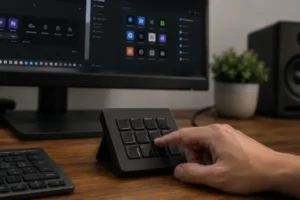
There’s a contradiction in the daily routine of architects and engineers that rarely gets discussed. These professionals spend hours designing three-dimensional objects — with depth, volume, faces, and angles — yet they navigate those objects using a flat device that only reads two axes of movement and was originally built for a world of windows, folders, and documents, not 3D environments.
In practice, that contradiction becomes obvious every time you need to reposition the camera inside a CAD program. Orbiting requires one combination of keys. Zooming relies on the mouse wheel. Repositioning the viewpoint requires another command entirely. They’re separate actions chained together in a way that constantly interrupts your train of thought whenever you need to inspect the model from another angle.
As more architects and engineers continue working remotely and adapting smaller spaces into technical workstations, the equipment used every day has started to directly affect both productivity and the overall work experience.
The 3D mouse emerged precisely as a tool designed to make navigation feel more intuitive, fluid, and accurate.
How a 3D Mouse Reads Movement — And Why It Changes Model Navigation Completely
The difference between a standard mouse and a 3D mouse isn’t about the number of buttons or the physical size of the device. It’s about the way the hardware interprets what your hand is doing.
A traditional mouse captures two types of information: direction and speed. A 3D mouse captures six simultaneously. It detects whether you’re pushing the central controller forward or backward, side to side, up or down — while also reading tilt, rotation, and twisting motions at the same time. All of this happens through a single gesture, with one hand applying pressure to the controller cap.
Inside CAD software, that means orbiting, zooming, and repositioning the camera stop being three separate actions and become one continuous movement instead. You no longer have to pause what you’re doing, press keyboard shortcuts, drag the mouse, release, and then resume working. Navigation happens seamlessly while everything else continues uninterrupted.
That’s the part most discussions about 3D mice fail to explain clearly. Saying the device “navigates in three dimensions” is technically true, but that’s not the real advantage. What actually matters is simultaneity — the fact that multiple types of movement happen together in response to a single gesture. That’s what removes friction from navigation, not simply the number of axes available.
The Impact on Design Thinking — Not Just Navigation Speed
There’s an effect that comes with using a 3D mouse that usually takes a few weeks to become noticeable, and it rarely appears in product reviews: it changes what you perceive inside the model, not just how you move through it.
When navigation requires technical effort — remembering keyboard combinations, switching tools, repositioning your hand — that effort competes with the actual design process. Part of your attention shifts toward operating the software instead of evaluating the project itself. It’s a silent form of cognitive interference that happens constantly, and most people only notice it once it disappears.
Architects who adopted the device often started identifying proportion issues, element clashes, and geometry inconsistencies earlier in the design process. Not because the software improved or because the model became more detailed, but because model exploration became continuous. You rotate, zoom in, inspect an angle, pull back, rotate again — and the cycle flows naturally without interruptions.
The closest comparison is with traditional drawing tools. A high-quality mechanical pencil doesn’t change what the hand already knows how to do, but it reduces resistance between movement and execution, which improves the quality of the line itself. A 3D mouse works the same way: it reduces the resistance between the intention to navigate and the act of navigating, and that extra mental space allows design thinking to function more clearly.
Which Software Handles It Best — And Where Limitations Still Exist
Before investing in the device, it’s important to understand where it truly delivers on its promise and where the experience can still feel inconsistent.
Programs with strong native integration include AutoCAD, Revit, SolidWorks, Rhino, and ArchiCAD. In these environments, the 3D mouse is recognized automatically, and camera behavior is adjusted to match the navigation logic of each platform. In Revit, for example, the device respects BIM camera controls. In SolidWorks, it adapts to the navigation style used in mechanical assemblies. That automatic adaptation is what makes navigation feel natural instead of generic.
In software without a dedicated native profile — including some rendering environments, niche plugins, or highly specialized tools — the device still works, but in a more standardized way. Sensitivity may feel poorly calibrated, camera behavior can seem awkward, and certain movements may feel inverted compared to what users instinctively expect. It doesn’t make the device unusable, but it significantly reduces the overall benefit.
There’s also a technical detail that rarely gets mentioned: most models allow you to adjust controller resistance — essentially how much physical force is required to generate movement on screen. Professionals working with extremely large models containing thousands of components often reduce sensitivity for finer control during small movements. Designers focused on conceptual modeling and rapid form exploration usually prefer higher sensitivity so lighter gestures create broader movement.
The Two-Handed Setup — How Architects and Engineers Restructure Their Workflow
A 3D mouse doesn’t replace a conventional mouse. Both devices coexist on the desk, each serving a different role, and that coexistence is what fundamentally changes the workflow.
The logic is simple: the left hand stays on the 3D mouse and handles continuous navigation — orbiting, zooming, panning, and repositioning the camera whenever necessary. The right hand remains on the traditional mouse, handling everything else — selecting elements, clicking commands, editing geometry. Both hands work simultaneously in separate functions without one needing to stop for the other to act.
That changes specific tasks in very practical ways. During a client presentation, for example, professionals can move through the model while simultaneously pointing at elements with the cursor — something that would otherwise require constantly alternating between navigation and interaction with a single mouse, creating a fragmented presentation flow. In long modeling sessions, the editing hand never has to interrupt its work simply to reposition the camera.
In practice, most users need between one and two weeks of deliberate use before the device starts feeling natural. Professionals who only use the device occasionally — whenever they happen to remember it’s sitting on the desk — rarely develop the habit because the instinct to use a standard mouse for everything is already deeply ingrained.
A 3D mouse only delivers its full value once it becomes part of the continuous workflow, and reaching that point requires an initial period of intentional use until the movement becomes automatic.
Real Buying Criteria — What Actually Differentiates the Models Beyond Price
The professional 3D mouse market is largely dominated by 3Dconnexion, whose product line is divided between compact models and models with programmable buttons. That distinction matters more than it initially seems.
Compact models like the SpaceMouse Compact offer only the central controller cap — no side buttons and no additional configuration. They’re designed for users who want fluid navigation without the added layer of assigning physical shortcuts.
Higher-end models like the SpaceMouse Pro and the Enterprise include programmable buttons capable of replacing frequent keyboard shortcuts — switching display modes, toggling layers, activating software-specific commands, and more, all without removing your hand from the device.
There’s also a selection criterion that almost never appears in product comparisons: base weight. A 3D mouse with a base that’s too light tends to slide across the desk during use, meaning the device itself moves along with your gesture instead of remaining fixed and responding only to pressure applied to the controller cap. Heavier models or those with non-slip rubber bases remain stable and ensure every detected movement is intentional rather than accidental device displacement.
For first-time users, starting with a simpler model usually leads to a smoother adoption process than jumping straight into the most advanced option. Programmable buttons introduce another layer of decisions — what to map, how to organize shortcuts, which commands matter most — and that extra complexity can delay real adoption for weeks. And a device that stays unused because the setup process was never completed solves nothing.
A 3D mouse is one of the few hardware tools that genuinely changes the way professionals interact with a model — not because it simply speeds up isolated tasks, but because it removes the interruption between wanting to inspect another angle and instantly being able to do it.
After enough time using it, navigation starts blending into the design process itself instead of feeling like a separate technical action. Rotating, zooming, and repositioning the camera become part of the same continuous movement used to evaluate proportions, inspect geometry, and explore the model from different perspectives. In workflows built around constant interaction with complex 3D environments, that shift tends to become noticeable surprisingly quickly.