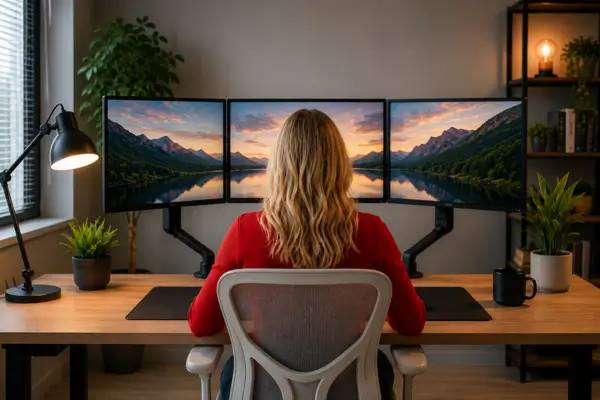
In today’s home office environment, the pursuit of comfort and productivity has led many professionals to invest in multiple monitors to expand their digital workspace and streamline daily tasks. While adding extra screens can significantly improve efficiency, an improperly configured setup can quickly become a source of physical strain and visual fatigue.
The truth is, the way your monitors are positioned has a direct impact on your posture, focus, and overall well-being. This guide goes beyond the basics, exploring smarter strategies to help you align a two- or three-monitor setup with proper ergonomics.
With a few thoughtful adjustments, your workspace can become far more comfortable, functional, and supportive throughout long work sessions.
The Logic Behind the Primary Monitor: Centering Your Vision in Dual and Triple Screen Setups
Think of your field of vision as a stage. At the center of that stage is the area your eyes naturally focus on most — the point where clarity, attention, and visual comfort are at their peak. In a multi-monitor setup, the first and most important decision is determining which screen should occupy that central position: your primary monitor.
For dual-monitor users, it can be tempting to split the setup evenly and sit between both screens. In practice, however, this often leads to constant neck rotation as your attention shifts from side to side throughout the day. A more ergonomic solution is much simpler: place the monitor you use most directly in front of you.
That screen should serve as your primary focal point. In a triple-monitor setup, the same principle applies. The center monitor becomes your anchor, while the side screens function as supporting extensions of your workspace without forcing unnecessary body movement.
Keeping the primary display centered creates the foundation for a more neutral and comfortable posture — a detail many people overlook when building their workspace. But once the main screen is in place, how should the others be positioned without disrupting the balance?
Ergonomics for Multiple Monitors: How to Create the Perfect Visual Arc
Once your primary monitor is centered, the next step is arranging the secondary displays in a way that feels natural to your eyes and body. One of the best ways to approach this is by thinking of your setup like an aircraft cockpit, where instruments are positioned in a gentle curve around the pilot for quick, effortless visibility.
That same concept works remarkably well for a monitor setup.
With two monitors, place the secondary screen beside the primary one and angle it slightly inward toward you. Ideally, the inner edge of the second monitor should align smoothly with the outer edge of the main display, creating a seamless visual transition between the two.
For three-monitor setups, both side monitors should angle inward to form a subtle arc around your field of vision. A good starting point is an angle between 15 and 30 degrees for each side screen.
With this layout, your eyes can move naturally between screens without forcing constant head movement, which helps reduce tension in the neck and shoulders. Beyond aesthetics, the curved layout also helps maintain a more consistent viewing distance across all screens, which plays a major role in reducing eye fatigue over time.
Still, what happens when the monitors themselves aren’t perfectly matched?
Horizon Alignment: The Best Way to Level Monitors of Different Sizes
Not every multi-monitor setup uses identical displays. Differences in size, model, resolution, or stand height can create a visually uneven “horizon,” forcing your eyes to constantly readjust as they move between screens. Over time, that inconsistency can become surprisingly tiring and disruptive to your workflow.
The real solution is visual alignment, not perfect physical symmetry.
Instead of focusing on making the monitors sit evenly on the desk, prioritize aligning the top edge of the visible screen area. The goal is to create a continuous horizontal visual line across all displays.
If one monitor is larger than the other, adjust their heights so the upper portion of the content lines up naturally. This may result in one screen sitting physically higher than the other — and that’s perfectly fine. What matters is how your eyes perceive the workspace.
The same principle applies to triple-monitor setups. Imagine an invisible horizontal line running across the top of all three displays. When the screens follow that line consistently, your brain interprets the setup as a unified workspace, making visual transitions smoother and less mentally exhausting.
Once your visual horizon feels balanced, the next challenge is maintaining comfortable focus across every screen.
Depth and Focus: Maintaining a Consistent Viewing Distance to Reduce Eye Strain
One of the biggest causes of eye fatigue in a multi-monitor setup is inconsistent viewing distance. If one screen sits much closer or farther away than the others, your eyes must constantly refocus every time your gaze shifts, creating repetitive strain that builds throughout the day.
The key is maintaining a consistent focal distance across all displays.
Ideally, each monitor should sit approximately the same distance from your eyes. A reliable starting point is the classic “arm’s length” rule: when seated comfortably, the screen should be about one arm’s length away from your face.
Start by positioning your primary monitor correctly, then adjust the secondary displays to match that depth as closely as possible.
If you’re using the curved “cockpit” arrangement mentioned earlier, the inward angle naturally helps maintain equal viewing distance by bringing the outer edges of the side monitors closer to your visual field.
The goal is to prevent your eyes from constantly having to “zoom in” and “zoom out” as you move between screens. These adjustments may seem small at first, but over time they can make a significant difference in both comfort and focus.
Of course, achieving that level of precision can be difficult when desk space is limited.
Smart Space Optimization: Using Monitor Arms and Mounts in Small Workspaces
In many home offices, available desk space is limited. Fitting two or three monitors onto a compact desk can feel overwhelming at first, but this is where smart ergonomic accessories become incredibly valuable.
Forget using stacks of books or improvised risers to elevate your screens. Adjustable monitor arms and mounting systems offer a far cleaner and more effective solution. They free up valuable desk space while allowing precise control over height, depth, tilt, and rotation.
For smaller desks, dual or triple monitor arms that clamp directly to the edge of the desk can completely transform the workspace. Beyond saving space, they also make it easier to adapt your posture throughout the day, whether you prefer working seated or standing.
Investing in a quality mounting system is really an investment in flexibility. It gives you the freedom to fine-tune your visual environment based on your own comfort and workflow needs.
Ultimately, an ergonomic multi-monitor setup is less about the number of screens and more about how naturally they fit into your workflow. Once your workspace supports the way your eyes and body move throughout the day, long hours at the desk start to feel far more comfortable, focused, and sustainable.